APPLE TRAINING TO LEARN AT YOUR OWN PACE.

Beginner or advanced user courses — structured in chapters of 2 to 5 minutes.
OUR COURSES

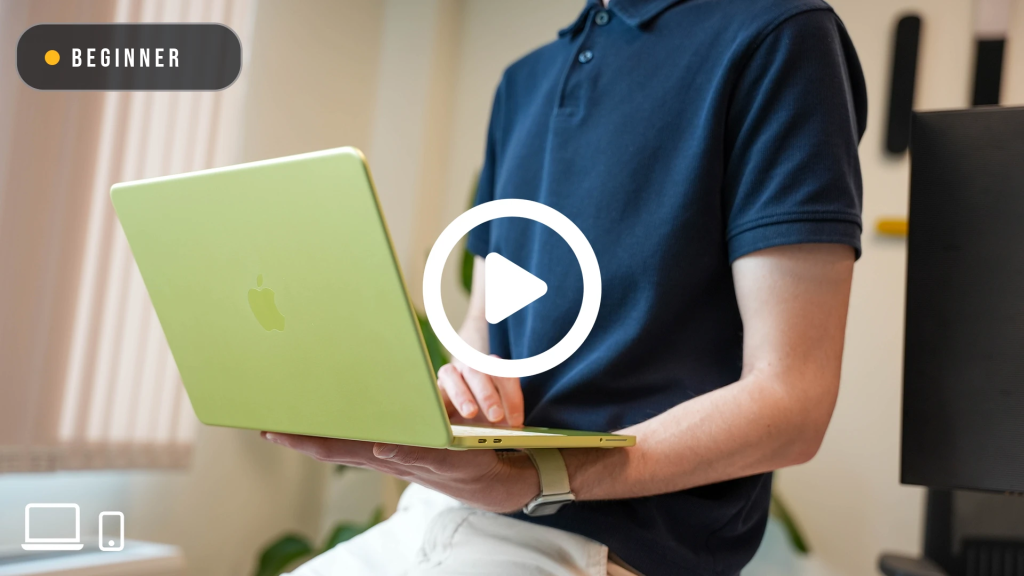
BEGINNER

From Windows to Mac in 30 minutes
Office 365 version

The most straightforward course for users switching from PC who work with Microsoft. Learn the essentials of the Mac ecosystem without losing a single day of productivity with your familiar Office tools.

SYLLABUS

  • 01

    Mac ecosystem ▶
    Mac ecosystem ▶
  • 02

    Taskbar → Dock
  • 03

    File Explorer → Finder
  • 04

    Settings → System Settings
  • 05

    Shortcuts → Quick Access
  • 06

    File search → Spotlight
  • 07

    PDF Reader → Preview
  • 08

    Screenshots
  • 09

    Office 365 (1)
  • 10

    Office 365 (2)
  • 11

    Video calls on Mac

BEGINNER

From Windows to Mac in 30 minutes
Google Workspace version

Designed for teams moving from Windows to Mac in Google environments. Everything you need to work smoothly from day one with Gmail, Drive and the rest of the suite.

SYLLABUS

  • 01

    The Mac environment
  • 02

    Taskbar → Dock
  • 03

    File Explorer → Finder
  • 04

    Settings → System Settings
  • 05

    Shortcuts → Quick Access
  • 06

    File search → Spotlight
  • 07

    PDF Reader → Preview
  • 08

    Screenshots
  • 09

    Google Workspace (1) ▶
    Google Workspace (1) ▶
  • 10

    Google Workspace (2)
  • 11

    Video calls on Mac

BEGINNER

FREQUENTLY ASKED QUESTIONS: THE FIRST FEW DAYS WITH A MAC

Everything you need to get comfortable with your Mac from day one: how to right-click, type the symbols you used on your Windows keyboard, open and edit a PDF, find your files and much more.

SYLLABUS

  • 01

    How do I right-click on Mac?
  • 02

    How do you use the Mac keyboard to copy, paste or type symbols? ▶
    How do you use the Mac keyboard to copy, paste or type symbols? ▶
  • 03

    Where are the 'Delete' and forward-delete keys on Mac?
  • 04

    How do I scroll and zoom on Mac?
  • 05

    How do windows work on Mac?
  • 06

    Where is the menu for each app on Mac?
  • 07

    Where is File Explorer on Mac?
  • 08

    How do I open and edit a PDF?
  • 09

    How can I search for files on Mac?
  • 10

    How do I access my network folder or server on Mac as I did on Windows?
  • 11

    Why is a file sometimes copied instead of moved when I drag it on Mac?
  • 12

    How can I see which apps are open and switch between them?
  • 13

    How do I close an app on Mac?
  • 14

    Can I take screenshots on Mac?
  • 15

    How do I connect a printer to my Mac?
  • 16

    Do I need to shut down my Mac? How do I do it?

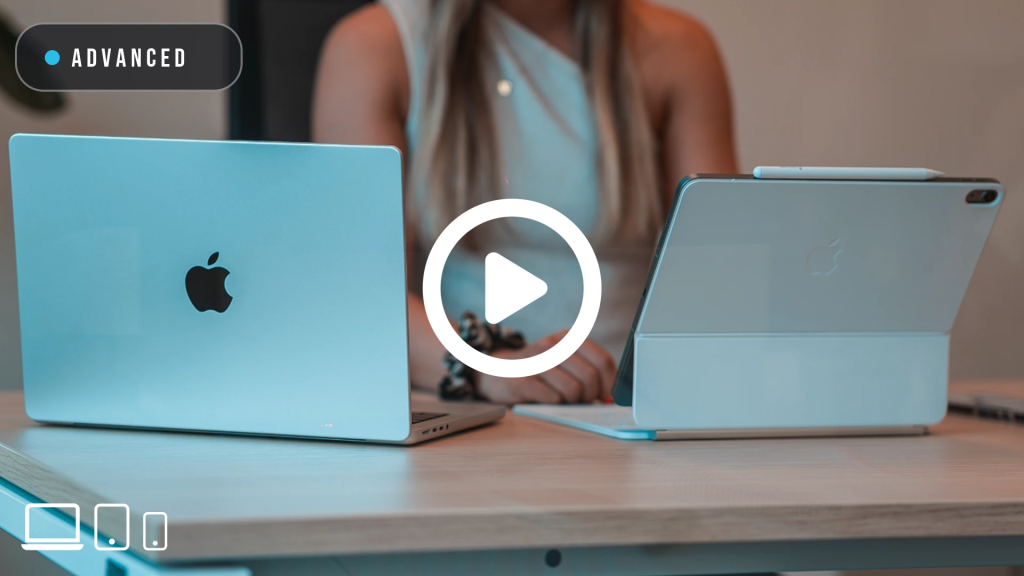
ADVANCED

MacOS deep dive for professionals

Go beyond the basics. This course is designed for users who already know their way around a Mac but want to unlock its full potential. Take productivity, personalisation and mastery of the Apple ecosystem to the next level.

SYLLABUS

  • 01

    The Dock
  • 02

    Widgets and Notification Centre
  • 03

    Control Centre
  • 04

    Finder and its different views
  • 05

    Finder tags
  • 06

    Smart Folders
  • 07

    Spotlight
  • 08

    Quick Actions
  • 09

    Advanced window management
  • 10

    Notes, Calendar and Reminders
  • 11

    Safari beyond browsing
  • 12

    Shortcuts and how to automate your work
  • 13

    Focus modes
  • 14

    Continuity
  • 15

    Everyday productivity

BEGINNER

Office for new Mac users

Word, Excel, PowerPoint and Outlook on Mac. A practical course that helps users moving to the Apple ecosystem stay productive with their favourite Microsoft tools from the outset.

SYLLABUS

  • 01

    Mac basics
  • 02

    Word for Mac users
  • 03

    Excel for Mac users
  • 04

    PowerPoint for Mac users
  • 05

    Outlook for Mac users
  • 06

    OneDrive for Mac users

ADVANCED

How to work with Mac, iPhone and iPad

The Apple ecosystem at its best. Learn how to connect your devices and work seamlessly across Mac, iPhone and iPad to boost your productivity.


SYLLABUS

  • 01

    Continuity: your Apple devices working as one
  • 02

    Handoff: start on one device and continue on another
  • 03

    Universal Clipboard: copy on iPhone, paste on Mac
  • 04

    Scan documents: use your iPhone as a professional scanner
  • 05

    Continuity Camera: use your iPhone as a webcam on Mac
  • 06

    AirDrop: share files without cables or apps
  • 07

    Unlock your Mac with Apple Watch: no passwords required
  • 08

    Personal Hotspot: use your iPhone as a Wi-Fi hotspot
  • 09

    Continuity calling: make and receive calls on Mac

BEGINNER

Getting started with Apple Intelligence

Apple’s artificial intelligence is here. Discover how to make the most of Apple Intelligence in your everyday work: writing, summaries, images and much more, directly from your devices.

SYLLABUS

  • 01

    Compatible devices
  • 02

    Activate and configure Apple Intelligence
  • 03

    Writing on iPhone
  • 04

    Writing on Mac
  • 05

    News in Safari
  • 06

    New Mail app
  • 07

    Image Playground
  • 08

    Genmoji
  • 09

    Photo editing
  • 10

    Visual Intelligence
  • 11

    Siri on iPhone
  • 12

    Siri on Mac
  • 13

    Voice memo transcription
  • 14

    Notification management

BEGINNER

From PowerPoint to Keynote

Present like never before

If you are coming from PowerPoint, Keynote will surprise you. Learn to create high-impact presentations on Mac, making the most of animations, transitions and design that does the hard work for you. The switch you never knew you needed.

SYLLABUS

  • 01

    Why Keynote
  • 02

    Getting started with Keynote
  • 03

    Get to know the menus
  • 04

    Transitions and animations that make a difference
  • 05

    Impactful text
  • 06

    Enhance your presentations with images
  • 07

    Use videos effectively
  • 08

    Collaborate in real time
  • 09

    Export and share without limits
  • 10

    Present professionally

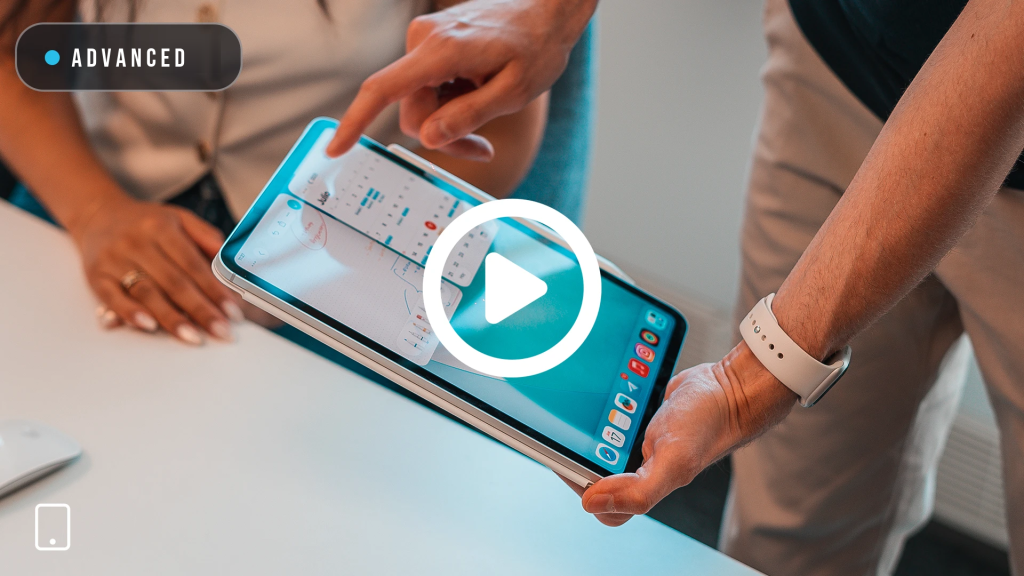
ADVANCED

iPadOS deep dive for professionals

Everything iPad can do for you in a professional environment. Document management, Apple Pencil, multitasking and connectivity to turn your iPad into a true work tool.

SYLLABUS

  • 01

    The iPadOS environment: getting started and personalisation
  • 02

    Essential gestures: master your iPad with your fingertips
  • 03

    Multitasking: Split View, Stage Manager and Slide Over
  • 04

    Apple Pencil: take notes, sign and draw like a professional
  • 05

    File management: Files, iCloud Drive and external storage
  • 06

    Mail, Calendar and Reminders: productivity from iPad
  • 07

    Keyboard and mouse: use iPad like a computer
  • 08

    Video conferencing: Teams, Meet, Zoom and Webex from iPad
  • 09

    Essential apps for professionals: the tools that make a difference
  • 10

    iPad and Mac: Sidecar and Continuity

ADVANCED

iOS deep dive for professionals

Your iPhone is much more than a phone. This course helps you master it as a work tool: productivity, communication, automation and the apps that make a real difference.

SYLLABUS

  • 01

    The iOS environment: getting started and personalisation
  • 02

    Essential gestures: master your iPhone with your fingertips
  • 03

    Focus modes: manage interruptions and stay focused
  • 04

    Professional camera: photos, video and document scanning
  • 05

    Mail, Calendar and Reminders: your office in your pocket
  • 06

    Notes and Reminders: capture ideas and manage tasks instantly
  • 07

    Shortcuts: automate your iPhone without writing code
  • 08

    Security and privacy: Face ID, passwords and data protection
  • 09

    Essential apps for professionals: the tools that make a difference
  • 10

    iPhone and Mac: Continuity and the Apple ecosystem

EVERY COURSE IS CUSTOMISED TO YOUR COMPANY’S BRAND IDENTITY.

Your brand, your language, your added value.